Description
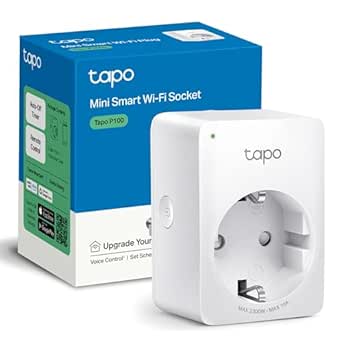
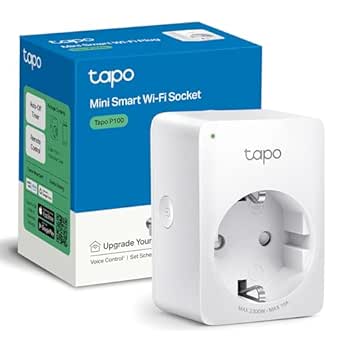
Tapo P100 Smart Plugs
Overview
Control up to 5 TP-Link Tapo smart plugs (P100 / P105 / P110 / P115) directly from the ChitUI toolbar. All control is local — the plugin talks to the plugs on your LAN using the KLAP protocol, with no cloud round trips and no cloud outage risk.
What it does
- Up to 5 plugs, each with its own name, icon, and toolbar button.
- Color-coded at a glance — ON is teal, OFF is gray, unreachable is a red outline.
- Live power draw (watts) shown in the button tooltip, for plugs that support energy monitoring (P110/P115).
- Stays in sync automatically — a background poller updates the toolbar even when a plug is switched from the Tapo app or its physical button.
- Printer association & emergency cutoff — link a plug to a printer; other plugins (like Leak Detector) can cut its power the instant a problem is detected.
- Optional Chitu Notify alerts on ON, OFF, unreachable, and emergency cutoff events.
In ChitUI
Each enabled plug gets its own button in the toolbar. Click to toggle it on or off; hover to see its live state and, for supported models, current power draw in watts. If a plug can't be reached — unplugged, off Wi-Fi, wrong IP — its button switches to a red outline instead of failing silently.
How to Configure It
1. Register you Tapo Smart Plug in the Tapo app on your phone and test it.
Now go to ChitUI
2. Open the plugin's settings and enter your TP-Link account email and password — the same ones used in the Tapo app. These are only used for the local handshake with each plug.
3. For each plug you want to use: set a Name, its IP address, and pick an Icon, then click Test to confirm the credentials and IP are correct — it shows the plug's model and current state.
4. Toggle the plug to Enabled, and optionally turn on Show Label so its name appears next to the toolbar button.
5. (Optional) Under Linked printer, associate the plug with one of your printers for emergency cutoff. Turning the plug off will ask for confirmation, with a stronger warning if that printer is actively printing.
6. (Optional) Turn on Notify on ON / Notify on OFF if you have the Chitu Notify plugin installed, to get alerts whenever the plug's state changes.
7. Click Save Settings when you're done.
Note:
- Press "Search" button to try and find plug in your network.
- This may not work depending on your network security settings.
Good to Know
- Plain P100/P105 plugs don't support energy monitoring — the watts readout only appears for P110/P115.
- Toggles are typically instant. The very first command after a restart is a bit slower (about a second) while the KLAP session is established; it's cached after that.
- Credentials are stored locally in ~/.chitui/tapo_p100_config.json, in plain text — same as other ChitUI plugin secrets. Keep your Pi secured.
- Other plugins or scripts can trigger a cutoff programmatically via POST /plugin/tapo_p100/printer/<printer_id>/cutoff — this is how Leak Detector can cut power the moment a resin leak is detected.
ChitUI - Tapo Smart Plug P100
Tapo smart plug controled via ChitUI