Description
Print Analytics
Overview
Print Analytics turns the print data ChitUI already sees over SDCP into a running history, a per-liter cost breakdown, and consumable-life tracking for your FEP film and LCD screen — with zero setup required to start recording.
What it tracks
Print History Every print is logged automatically — start/finish time, duration, layers, filename, printer, and outcome (completed, cancelled, or error) — stored locally, no cloud account needed.
Resin & Cost Log the resin (ml) used after a print and Print Analytics works out the cost from your price-per-liter — so you always know what a model actually cost to make.
Consumable Life Tracks cumulative cured hours on your FEP film and LCD screen since they were last replaced, with a warning threshold and a one-click "Mark replaced" reset.
In ChitUI
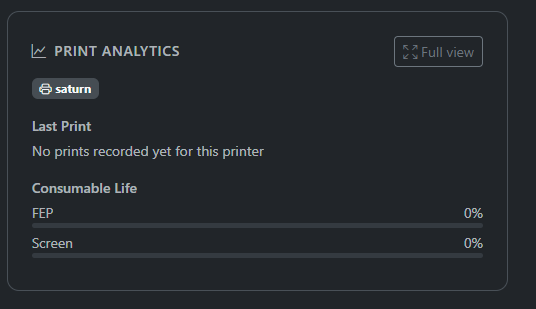
A compact card sits in the sidebar next to the file manager for an at-a-glance status. Click Full view for the complete dashboard.
Two more tabs sit alongside Overview: History, a full sortable table of every print where resin volume and notes are editable inline, and Consumables, with life bars and reset buttons for FEP and screen per printer.
How to Configure It
Print Analytics needs no configuration to begin tracking print history — it starts recording the moment it's enabled. The steps below are for setting resin cost and consumable-life thresholds.
1. Enable the plugin Go to Settings → Plugins, find Print Analytics in the list, and toggle it to Enabled. It starts logging prints immediately — no restart needed.
2. Set your defaults Click the Configure button on the plugin's card to open its settings, then stay on the Defaults tab:
- Resin price (per liter) and currency symbol — used to calculate cost once you log resin used on a print.
- Default FEP life (hours) and default screen life (hours) — the cumulative cured-hours threshold before that consumable is considered due for replacement. Applied automatically the first time a printer is seen.
- Warn at % of life used — fires the FEP/Screen life warning notification once a consumable crosses this percentage of its threshold.
- Click Save Defaults when you're done.
3. Fine-tune per printer (optional) Switch to the Per-Printer tab, pick a printer from the dropdown, and give it its own FEP/screen life thresholds — handy if your printers use different resins or their consumables age at different rates. You can also override the resin price for just that printer.
4. Log resin used after a print (optional) Resin volume isn't reliably available from the slicer file header across versions, so cost tracking is opt-in per print: open a print's row in the History tab and enter the ml used — the cost is calculated automatically from your price-per-liter.
5. Check in from the sidebar or the full dashboard The sidebar card always shows the last print result and a live FEP/Screen life bar. Click Full view any time for aggregate stats, the full print history, and consumable reset controls.
6. Turn on alerts (optional) Install the Chitu Notify plugin to receive alerts for print outcomes and consumable warnings. Print Analytics registers five alarms — toggle channels for each from the bell icon in the toolbar:
- print_completed
- print_failed
- print_cancelled
- fep_life_warning
- screen_life_warning
ChitUI - Print Analytics
Print Analytics for ChitUI